Setting up a salary project in 1C
First, create a salary project in 1C and export your data in the *.xml format. Then, import the file to the online bank to create accounts for the employees. Once the bank has assigned a personal account to each employee, add them to 1С, then generate and upload the salary register to the online bank to process the payroll.
Create a salary project
- In 1С, open the Main menu and type Salary Projects in the search bar.
- Click Create.
- Fill in the salary project details:
- legal entity / organization
- bank name
- agreement number and date
- settlement account for salary register payments
- payment system for bank cards MIR Classic
- Click Save and Close.
- Navigate back to the Main menu and type Applications for Opening Personal Accounts in the search bar.
- In the list, select the Bank 131 salary project and click Create.
- Complete the required information: the organization and the salary project.
- Add employees by clicking the
 button.
 - Click Save → Post → Export File.
The file will be saved to your device in the *.xml format. DO not rename the file and just upload it to the online banking system.
Upload the file to the online bank
First, place the file exported from 1C into the folder designated for data exchange with 1C (you can configure/view the path in the online bank import settings). If there are multiple files in the folder, the system will upload them all.
- Log in to your online banking account.
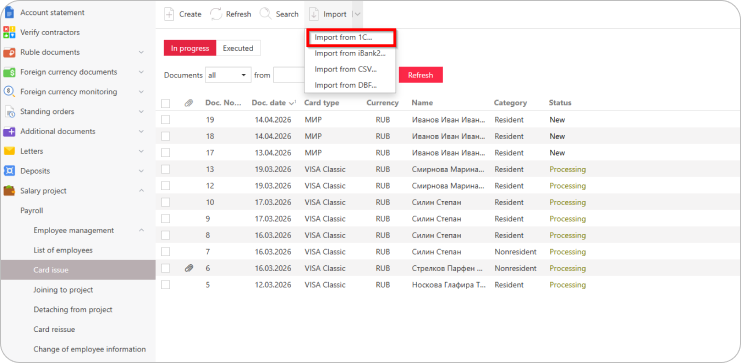
- Navigate to Salary project → Employee management → Card issue.
- From the Import drop-down menu, select Import from 1C....
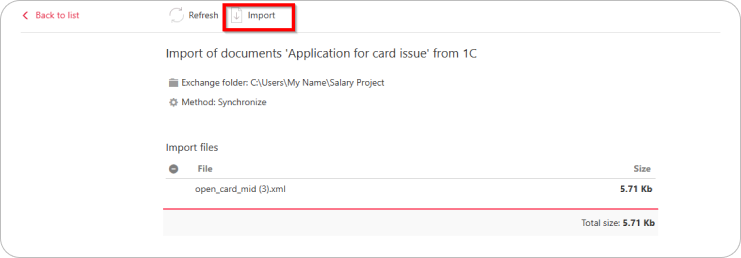
- Click Import and wait for the file to be uploaded successfully.
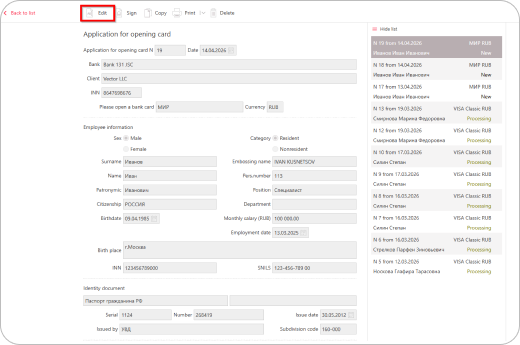
- After the upload, open each application and check that all required fields are filled in. Otherwise, the Bank will not accept it. If any fields need to be completed, switch to edit mode.
- Sign all applications with your electronic signature. They will then be sent to the Bank for processing.
After processing, the Bank will assign a personal account number to each employee for salary transfers. These account numbers will appear in the employee cards under Salary project → Payroll → List of employees. Enter them in 1C before making the payment.
Add personal account numbers
- In 1C, open the Main menu and go to Personnel → Employees.
- Open the employee card and go to the Salary Payment tab.
- Select Within the salary project → by personal account and enter the account number assigned by the Bank.
- Click ОК.
Prepare a payment order
On the day you create the payroll register, top up the transit account by creating a payment order in Ruble documents → Payment order. Make sure the amount in the payment order matches the amount in the salary register, then sign it with your electronic signature.
Generate and upload the salary register to the online bank
- In 1C, open the Main menu and type Submit Payroll to the Bank in the search bar.
- Click Create.
- Fill in the details:
- month
- legal entity / organization
- salary project
- income type
- Add employees.
- Click Save → Post → Export File.
The file will be saved to your device in the *.xml format. Do not rename it. Upload the file to the online bank under Salary project → Payroll (the same as for uploading an application to open personal accounts), and sign it with your electronic signature. The register will be sent to the Bank for processing, and salaries will be paid to employees.